Global Group:
Members of Global Group can come only from local domain but members can access resources in any domain.
Domain Local Group:
Members of Local Group can come from any domain but members can access resources only in local domain.
Universal Group:
Members can come from any domain and members can access resource in any domain.
Tuesday, September 6, 2011

Monday, September 5, 2011
Deleting Registry Keys and Values
Deleting Registry Keys and Values
To delete a registry key with a .reg file, put a hyphen (-) in front of the RegistryPath in the .reg file. For example, to delete the Test subkey from the following registry key:
HKEY_LOCAL_MACHINE\Software
put a hyphen in front of the following registry key in the .reg file:
HKEY_LOCAL_MACHINE\Software\Test
The following example has a .reg file that can perform this task.
[-HKEY_LOCAL_MACHINE\Software\Test]
To delete a registry value with a .reg file, put a hyphen (-) after the equals sign following the DataItemName in the .reg file. For example, to delete the TestValue registry value from the following registry key:
HKEY_LOCAL_MACHINE\Software\Test
put a hyphen after the "TestValue"= in the .reg file. The following example has a .reg file that can perform this task.
HKEY_LOCAL_MACHINE\Software\Test
"TestValue"=-
To create the .reg file, use Regedit.exe to export the registry key that you want to delete, and then use Notepad to edit the .reg file and insert the hyphen.
1) Right Click on the Registry Folder and select export;
2) Replace the registry value with -
See example as per below.

To delete a registry key with a .reg file, put a hyphen (-) in front of the RegistryPath in the .reg file. For example, to delete the Test subkey from the following registry key:
HKEY_LOCAL_MACHINE\Software
put a hyphen in front of the following registry key in the .reg file:
HKEY_LOCAL_MACHINE\Software\Test
The following example has a .reg file that can perform this task.
[-HKEY_LOCAL_MACHINE\Software\Test]
To delete a registry value with a .reg file, put a hyphen (-) after the equals sign following the DataItemName in the .reg file. For example, to delete the TestValue registry value from the following registry key:
HKEY_LOCAL_MACHINE\Software\Test
put a hyphen after the "TestValue"= in the .reg file. The following example has a .reg file that can perform this task.
HKEY_LOCAL_MACHINE\Software\Test
"TestValue"=-
To create the .reg file, use Regedit.exe to export the registry key that you want to delete, and then use Notepad to edit the .reg file and insert the hyphen.
1) Right Click on the Registry Folder and select export;
2) Replace the registry value with -
See example as per below.

Sunday, September 4, 2011
Fix Temporary Profile in Windows 7 Issue
Fix Temporary Profile in Windows 7 Issue
1)Log in with temp profile.
2)Start registry editor by typing regedit in find box in Windows 7.
3)Navigate the following location in Windows 7.
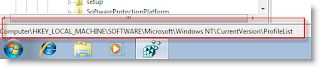
4)You can see similar keys under profile list with .bak difference, as shown below.
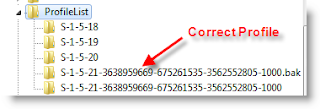
5)You correct profile key is marked as bak. Currently your Windows 7 computer logged in with fresh profile with same key. So, rename the new profile key ( which is not having.bak) and remove .bak from correct profile key. See below.
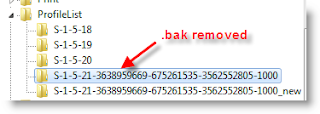
6)That’s it. Log off and log in with your user name and password. You must get your icons and profile settings back in Windows 7. This is very simple and easy method to fix temp profile in Windows 7 issue.
1)Log in with temp profile.
2)Start registry editor by typing regedit in find box in Windows 7.
3)Navigate the following location in Windows 7.

4)You can see similar keys under profile list with .bak difference, as shown below.

5)You correct profile key is marked as bak. Currently your Windows 7 computer logged in with fresh profile with same key. So, rename the new profile key ( which is not having.bak) and remove .bak from correct profile key. See below.

6)That’s it. Log off and log in with your user name and password. You must get your icons and profile settings back in Windows 7. This is very simple and easy method to fix temp profile in Windows 7 issue.
Get the email addresses for all users in a security group
The command below pipes the query for the Group and then gets the email addresses of all users in that group
dsquery group -name "VDI_View_Local_Mode_Pool_L3B1P1" | dsget group -members | dsget user -email > c:\Queries\Local_Mode.txt
dsquery group -name "VDI_View_MS_Users_Floating_Pool_C1B1P1" | dsget group -members | dsget user -email > c:\Queries\MS_Floating_Pool.txt
dsquery group -name "VDI_View_Floating_Pool_C1B1P1" | dsget group -members | dsget user -email > c:\Queries\Floating_Pool.txt
dsquery group -name "VDI_View_Dedicated_Pool_C2B1P1" | dsget group -members | dsget user -email > c:\Queries\Dedicated_Pool.txt
dsquery group -name "VDI_View_Local_Mode_Pool_L3B1P1" | dsget group -members | dsget user -email > c:\Queries\Local_Mode.txt
dsquery group -name "VDI_View_MS_Users_Floating_Pool_C1B1P1" | dsget group -members | dsget user -email > c:\Queries\MS_Floating_Pool.txt
dsquery group -name "VDI_View_Floating_Pool_C1B1P1" | dsget group -members | dsget user -email > c:\Queries\Floating_Pool.txt
dsquery group -name "VDI_View_Dedicated_Pool_C2B1P1" | dsget group -members | dsget user -email > c:\Queries\Dedicated_Pool.txt
Monday, August 15, 2011
Check System Uptime
net statistics workstation
net statistics workstation | find "Statistics since"
systeminfo
systeminfo| find "System Boot Time"
net statistics workstation | find "Statistics since"
systeminfo
systeminfo| find "System Boot Time"
Wednesday, August 3, 2011
AD Query

Locked Out Users - Displays all the user accounts that are locked out
(&(&(&(&(objectCategory=person)(objectClass=user)(lockoutTime:1.2.840.113556.1.4.804:=4294967295)))))
Dial In Access - Displays all the user accounts with Dial In Access
(&(&(&(&(objectCategory=person)(objectClass=user)(msNPAllowDialin=TRUE)))))
Disabled User Accounts - Displays all the user accounts that are currently disabled
(&(objectCategory=person)(objectClass=user)(userAccountControl:1.2.840.113556.1.4.803:=2))
Non Expiring Accounts - Displays all the user accounts that are set to not expire
(&(objectCategory=person)(objectClass=user)(userAccountControl:1.2.840.113556.1.4.803:=65536))
Active Accounts - Displays all the users account that are active
(&(&(objectCategory=person)(objectClass=user)(!userAccountControl:1.2.840.113556.1.4.803:=2)))
Hidden Mailboxes - Displays all accounts with hidden Mailboxes
(&(objectCategory=person)(objectClass=user)(msExchHideFromAddressLists=TRUE))
Windows XP Computers - Displays all computers running Windows XP
(&(&(&(&(&(&(&(objectCategory=Computer)(operatingSystem=Windows XP Professional)(operatingSystemServicePack=Service Pack 3))))))))
Vista Machines – Displays all computers running Windows Vista
(&(&(&(&(&(&(sAMAccountType=805306369)(objectCategory=computer)(operatingSystem=Windows Vista*)))))))
Vista Machines – SP1
(&(&(&(&(sAMAccountType=805306369)(objectCategory=computer)(operatingSystem=Windows Vista*)(operatingSystemServicePack=Service Pack 1)))))
All Computers - Displays all computers
(sAMAccountType=805306369)
Windows Server 2000 - Displays all computers running Windows Server 2000 (not including DC’s)
(&(&(&(&(&(objectCategory=Computer)(operatingSystem=Windows 2000 Professional))))))
Windows Server 2003 - Displays all computers running Windows Server 2003 (not including DC's)
(&(&(&(samAccountType=805306369)(primaryGroupID=516)(objectCategory=computer)(operatingSystem=Windows Server 2003*))))
Windows Server 2008 - Displays all computers running Windows Server 2008 (not including DC's)
(&(&(&(&(samAccountType=805306369)(!(primaryGroupId=516)))(objectCategory=computer)(operatingSystem=Windows Server 2008*))))
All Windows Server Domain Controllers - Displays all computers that are Domain Controllers
(&(&(&(sAMAccountType=805306369)(useraccountcontrol:1.2.840.113556.1.4.804:=67117056))))
My Document Folder Redirection
My Document Folder Redirection
Check in these two places
HKEY_CURRENT_USER\Software\Microsoft\Windows\CurrentVersion\Explorer\Shell Folders
HKEY_CURRENT_USER\Software\Microsoft\Windows\CurrentVersion\Explorer\User Shell Folders
Check in these two places
HKEY_CURRENT_USER\Software\Microsoft\Windows\CurrentVersion\Explorer\Shell Folders
HKEY_CURRENT_USER\Software\Microsoft\Windows\CurrentVersion\Explorer\User Shell Folders
Subscribe to:
Posts (Atom)